Amazon Brand Store deals page: Featured Deals widget rules for Black Friday Week
Amazon's Featured Deals widget shows only products on a live deal. The checks to run on your Brand Store deals page before 19 November 2026.

- 14 min read
- Catalog & Brand
Fact-checked against Amazon's own pages on 16 Nov 2026
On this page
The short answer
- What the Featured Deals widget shows: on an Amazon Brand Store deals page, only products with an active promotion. In a curated list, each product also has to be in stock, according to Amazon’s Stores specs.
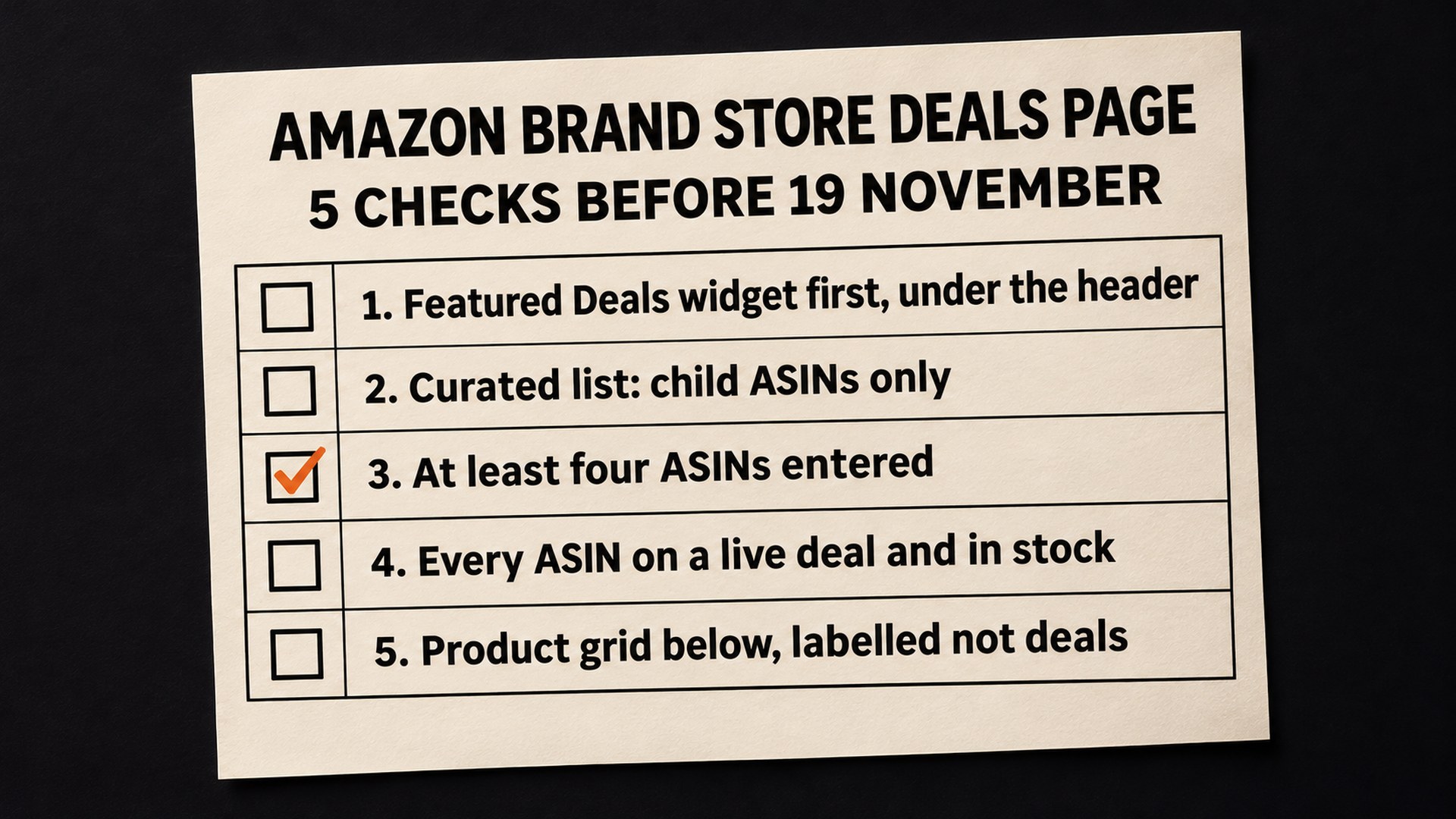
- Child ASINs only: for a curated list the specs say “Child ASINs must be used; parent ASINs are not supported.”
- Four ASINs: Amazon’s Black Friday advertising guide says at least four ASINs need to be added to activate the widget.
- Where it sits: Amazon’s approved layout puts the widget immediately under the header, then a text tile, then a product grid, which Amazon requires so the page always shows products.
- Scheduling: a Store cannot be scheduled within 24 hours of the event’s intended start, and Amazon asks for it at least 48 hours ahead. For a version starting with the event at 12:01 a.m. PST on 19 November, we count those as 12:01 a.m. PST on 18 November and on 17 November.
- You may already have a deals page: Amazon now builds an automatic All Deals page, unless your Store uses a premium theme, you have added the Featured Deals widget yourself, or you have opted out in Store Settings.
“A banner will appear to let shoppers know that there aren’t currently featured deals.” That sentence is in Amazon Ads’ Stores ad specs, and it describes what a shopper sees on an Amazon Brand Store deals page when the Featured Deals tile has nothing to show. Amazon’s Black Friday Week and Cyber Monday events run from 19 to 30 November 2026, so this is the week that page gets built.
The tile decides what it shows on the day. A product appears only while it has an active promotion, and a hand-picked list adds two more conditions on top of that. So a page that looked full in the Store builder can be thin, or empty, when your Sponsored Brands ad sends someone to it.
Amazon spreads the rules across several of its own pages. This guide puts them in one place, with the dates worked out for 2026, so you can run the check before the event starts.
Why an Amazon Brand Store deals page shows nothing
The Featured Deals tile is a filter, and what you type into it is only a list of candidates. Amazon’s specs say the tile shows products with active promotions, and that they appear for as long as the promotions last. The promotions it picks up include Best Deal, Deal of the Day, Limited Time Deal and coupon-based promotions.
You choose one of two modes. “All products” pulls in every product in your Store, and every catalog product associated with it, whenever one has an active deal. “A curated set of products” shows only the ASINs you enter, in the order you enter them, and only “when they have active deals and are in stock.”
Amazon’s Black Friday and Cyber Monday advertising guide tells advertisers to use the curated mode for the event, and it adds three lines that decide what shows:
- The minimum: “At least four ASINs need to be added to activate the FDW.” FDW is Amazon’s short name for the Featured Deals widget.
- The filter: “The widget will only show ASINs if they are deals.”
- The removal: “When a promotion ends or products go out of stock, they will be removed automatically.”
The child ASIN rule is the one we would check first, because the mistake looks like a harmless shortcut. A parent ASIN is the umbrella record that groups your sizes or colours, and entering it feels like the tidy way to add a whole family. Amazon’s specs say parent ASINs are not supported in a curated list, so we would not expect the family to show. If your variation families are tangled, our guide to Amazon variation errors and parent-child listings explains how the two records relate.
The specs also describe what a shopper sees as the count of live deals falls:
| Products on an active deal | What the tile shows, per Amazon’s Stores specs |
|---|---|
| 4 or more | A full-width, four-column grid under the “featured deals” title |
| 2 to 3 | A centre-aligned section under the title |
| 1 | One product in a full-width section, with no title |
| None | A banner saying there are no featured deals at the moment |
Amazon does not say, in either page, what happens when you entered four ASINs and fewer than four are still on deal mid-event. Our reading of the table is that the tile shrinks and then gives way to the banner. That is our reasoning, and Amazon has not confirmed it, so the safe plan is to enter more than four and expect the layout to change as deals end.
Amazon plans for the empty case itself. The Black Friday guide says: “Including a product grid in the tab is required to ensure you always have products shown, in case there are no active deals displayed in the FDW.”
How to know if your deals page is at risk
You can tell from the ASIN list and the deal schedule, without waiting for the event. These are the signs we would look for:
- Parent ASINs in the curated list: Amazon does not support them there, whatever deal runs on the children.
- Fewer than four ASINs in the list: the guide says at least four need to be added to activate the widget, and only the ones on a live deal will show.
- Thin stock on a featured product: in a curated list, a product that sells out leaves the tile.
- Anything between the header and the widget: Amazon’s layout rule does not allow it (advertisers leading with multi-brand deals have one exception, covered below), which we read as a rejection risk in the week you have least time to fix one.
- A premium theme Store that is counting on the automatic page: Amazon says the All Deals page is not available for premium theme Brand Stores.
If the deals themselves are still in doubt, the price checks are in our guide to the Amazon Black Friday deal deadline. For stock, why Delivered is not the same as ready covers the inbound side.
What to check first on your Amazon Brand Store deals page
We would take these in order, because the first one can save you the rest.
- Which deals page you have. Amazon Ads’ guide to preparing a Brand Store for key shopping events says limited-time deals now appear automatically on an “All Deals” page next to your homepage, with deals displayed and removed by their active dates. It also says: “Amazon won’t automatically create an All Deals page if you use the Featured Deals widget and add it in one of your store pages. Shoppers will see only one deals page within a Brand Store.” So adding the widget anywhere means the manual page is the one shoppers get.
- The ASIN list. Child ASINs, at least four, each with a deal that will be live during the event. The guide says the ASINs featured in your ad creative must be entered first, and that ASINs appear in the order entered.
- Stock on every ASIN in the list. A product that goes out of stock is removed automatically, so the one that sells fastest is the one most likely to vanish.
- The layout. Amazon says the page should contain the widget as the first product selection tile, and its wording on placement is that the widget “Must appear immediately under the header with no other elements in between.” Under it goes a text tile, then the product grid. The text tile has to say the products below are not deals.
- The copy. Promotional messaging in a Brand Store is only permitted with the Featured Deals widget. Amazon’s approved examples include “Great savings/discounts” and “Holiday/Season special.” Not allowed: “Today only,” “Hurry,” specific numbers such as “Save 50% on Product,” and superlatives such as “Save big.” The banner between widget and grid cannot use the word “offer.”
- The title and the header images. Amazon says a page carrying deals messaging must be appropriately titled. The Store prep guide adds that product shots in the header, or in category tiles leading to the deals page, should only be of ASINs with an active promotion during the event.
The Store prep guide also lists this among its common policy errors: “Don’t call out numerical discounts or any percentages.” So the percentage stays out of your banner and your header.
How the page gets fixed before 19 November
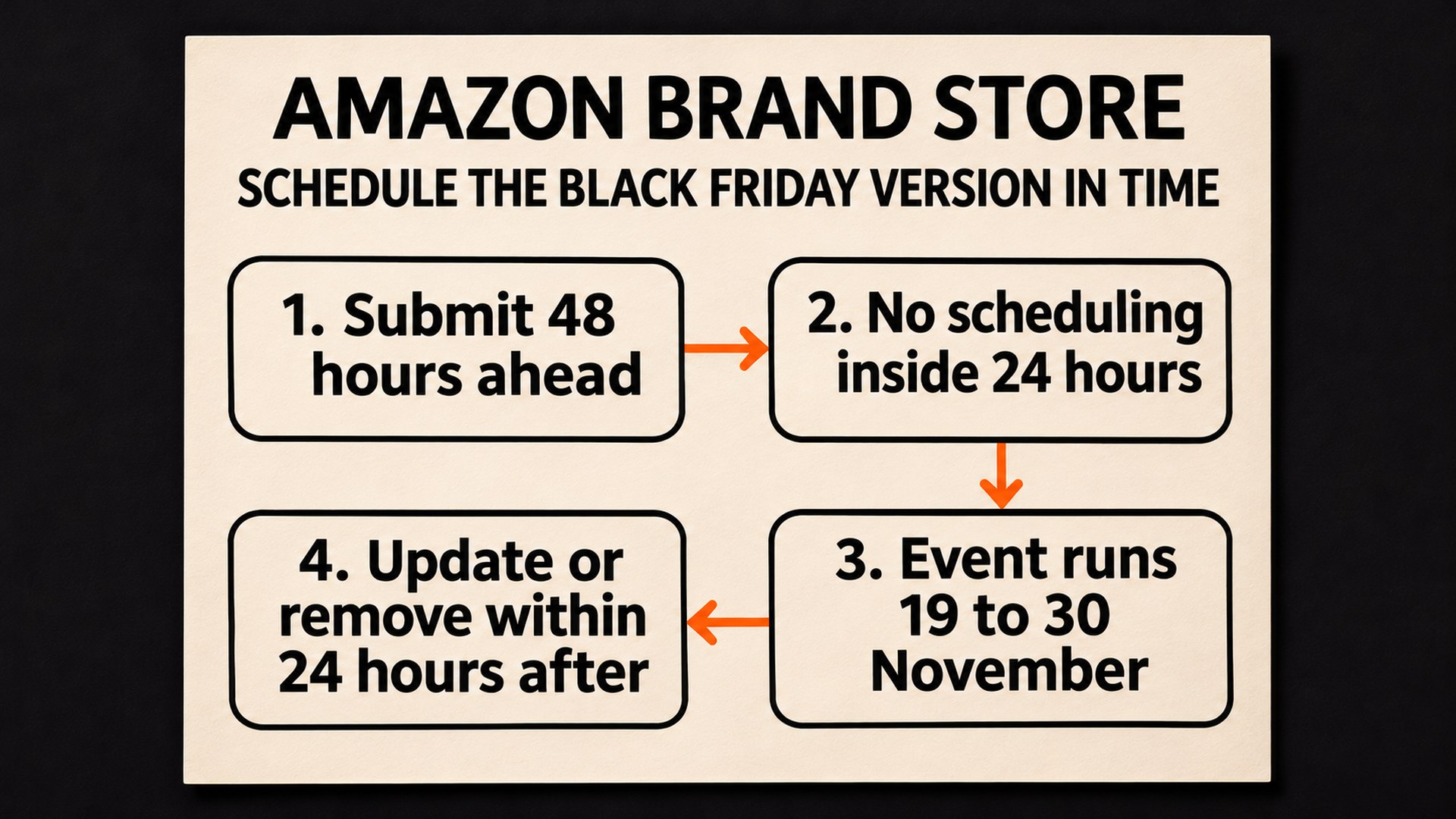
There are two ways to put the deals page live. You can edit the Store you have and publish it, or you can schedule a separate version with a start and end date, which Amazon’s guide describes as an option for Black Friday. The scheduled version is cleaner, because you choose its launch date and its end date up front, but it comes with a cutoff.
Amazon’s wording is: “Brand Stores cannot be scheduled within 24 hours of the intended start date of the promotion, launch, or seasonable event. Please submit your Brand Store at least 48 hours ahead of the scheduled start date.”
Amazon says the events “kick off at 12:01 a.m. PST on November 19.” For a version scheduled to start at that minute, 48 hours ahead is 12:01 a.m. PST on 17 November, which in practice means the end of 16 November, Pacific time. The 24 hour line falls a day later, at 12:01 a.m. PST on 18 November. Both are our arithmetic from Amazon’s two lines. Amazon does not print a 2026 Store deadline anywhere we could find.
If the 48 hour point has passed when you read this, you are inside the margin Amazon asks for, and a version starting with the event may not be approved in time. Once the 24 hour line passes, Amazon’s wording is that the Store cannot be scheduled. Our reading is that two routes remain after that: editing the Store you have and publishing it, or scheduling a version with a later start. Publishing is not instant either. Amazon’s Store prep guide ends its opt-out steps with “Wait for Moderation to approve your store and the changes to go live,” and none of the Amazon pages cited here says how long moderation takes. We would not plan around a guess, so the earlier the Store goes in, the more room there is to fix a rejection.
The same guide sets two more timing rules for deals messaging, and repeats them for scheduled versions. Sales event messaging “should start no more than seven days prior to the event,” and it should “be removed or updated within 24 hours of the event date, unless the event is considered to last longer (like Cyber Week).”
The guide’s own date ranges carry no year (its Black Friday Week example runs 17 to 28 November), and they do not match the 19 to 30 November dates in Amazon’s 2026 announcement. We would take the dates from the announcement and the rules from the guide.
If you sell several brands and lead with multi-brand deals, the guide allows category image tiles with text above the widget on a deals page. Each page those tiles link to must also contain the Featured Deals widget.
Amazon publishes UK and Canadian versions of the advertising guide with the same Store rules (the UK list of approved phrases says “Festive/Season special” where the US one says “Holiday/Season special”). The event dates above are from Amazon’s US announcement, and this guide does not cover the dates for other stores.
How to stop an empty deals page happening again
The page changes during the event, so one check before launch is not enough. Deals start and end at their own times, and stock moves. Amazon’s Store prep guide asks you to look at the Store preview on a phone or tablet. We would go further and open the live deals page on a phone, logged out, on each day of the event, because that is the view a shopper gets. The daily check is our addition.
An empty Featured Deals tile at least leaves a banner behind. Other parts of a Store disappear without one. From the same Stores specs and the collections guide:
- Best seller and Recommended products tiles: each shows five products automatically, and each “won’t be shown” if there are no qualifying products.
- The Add to Cart button on a standard product grid: it does not show if the product “Is out of stock in your inventory, even if available through third-party sellers.” It is also hidden for products with variations to choose from, products that allow for clipping coupons and products categorised as Apparel. In a tall product grid it is hidden for every product.
- Product collections: Amazon’s guide to product collections on Stores recommends the “Hide out of stock products” option, and says products that cannot be bought or pre-ordered will not show. A collection title cannot mention deals, discounts or savings.
A whole Store going blank is a different problem, and Amazon has published no explanation for it that we could find. One seller wrote on the Seller Forums (the thread shows as about three years old): “2 weeks ago my storefront became completely blank! Sales dropped 65%!” The seller says Seller Support replied with “Please provide an ASIN that is not visible....” I understand how that feels when the answer is all of them.
That blank storefront thread on the Amazon Seller Forums is one report, and the replies that load without signing in include no Amazon reply and no resolution. One seller replied that the storefront loaded fine for them. Another seller’s reply is still a sensible place to start: are the listings active, in stock, not suspended, and free of IP complaints. Those are listing questions, and our guide to Amazon showing currently unavailable when you have stock covers the most common one.
After Cyber Monday, the deals messaging comes down or gets updated within Amazon’s 24 hours. A scheduled version with the right end date is how we would handle that, which is the best argument for scheduling next time. If ads are sending the traffic, our guide to campaigns running out of budget early on Black Friday is the other half of the same week.
Have your Brand Store deals page checked before Black Friday Week
Checking a deals page against these rules means reading the Store, the deal schedule and the stock position side by side, in a week that is already full. That is the work in our Brand Store design and build service: the layout, the ASIN list, copy written to Amazon’s rules, and the version scheduling. We cannot promise how quickly Amazon moderates a Store or that a version will be approved, and we will tell you if the dates are already too tight.
If you would like a first look with no call, our free audit gives you a written review of one Amazon listing. For the Store itself, contact us through the Brand Store page and we will go through the deals page with you.
Common questions about the Amazon Brand Store deals page
Why is my Amazon Featured Deals widget not showing products
The widget shows a product only while it has an active promotion, and in a curated list the product also has to be in stock. Amazon's Stores specs add that a curated list takes child ASINs and does not support parent ASINs. With no products on a live deal, the specs say shoppers see a banner telling them there are no featured deals at the moment.
How many ASINs does the Featured Deals widget need
Amazon's Black Friday and Cyber Monday advertising guide says at least four ASINs need to be added to activate the widget. Amazon's Stores specs also describe smaller layouts for two to three products and for one product. Neither page says what happens when four were entered and fewer are still on deal, so we would enter more than four.
Can I use parent ASINs in the Featured Deals widget
Not in a curated list. Amazon's Stores ad specs say child ASINs must be used and parent ASINs are not supported. The other mode, All products, does not ask for an ASIN list, because it pulls in Store and catalog products whenever they have an active deal.
When does a scheduled Brand Store version need to be submitted for Black Friday 2026
Amazon's guide says a Brand Store cannot be scheduled within 24 hours of the intended start date of the event, and asks for it at least 48 hours ahead. Amazon's announcement dates the events from 12:01 a.m. PST on 19 November 2026, so for a version starting then we count 48 hours ahead as 12:01 a.m. PST on 17 November, and the 24 hour line as 12:01 a.m. PST on 18 November. Amazon does not publish a 2026 Store deadline or a moderation time on these pages.
Does Amazon create a deals page in my Brand Store automatically
Amazon Ads' guide to preparing a Brand Store for key shopping events says limited-time deals now appear automatically on an All Deals page next to your homepage. The same guide says the page is not available for premium theme Brand Stores, and that Amazon will not create it if you add the Featured Deals widget to one of your own pages. You can also opt out in Store Settings, under Display all deals.
What wording is allowed on a Brand Store deals page
Amazon's guide permits promotional messaging in a Brand Store only alongside the Featured Deals widget, and gives approved examples such as "Great savings/discounts" and "Holiday/Season special". It does not allow urgency such as "Today only", specific numbers such as "Save 50% on Product", or superlatives such as "Save big". The text tile above the product grid has to say those products are not deals.
Sources
- Stores ad specs, Amazon Adsadvertising.amazon.com
- Black Friday and Cyber Monday 2026 announcement, About Amazon (US)aboutamazon.com
- Black Friday and Cyber Monday advertising guide, Amazon Ads (US)advertising.amazon.com
- Seven steps to prepare your Brand Store for key shopping events, Amazon Ads guideadvertising.amazon.com
- Product collections on Stores, Amazon Ads guideadvertising.amazon.com
- Blank storefront thread, Amazon Seller Forums (one seller's report)sellercentral-europe.amazon.com
Founder, AVA INC.
Shilpi Dudani is the founder of AVA INC. Her team manages Seller Central accounts, fixes catalog problems and optimizes listings for Amazon sellers.
Not sure whether this is your problem?
We will look at your account and tell you what is actually wrong before you spend anything.
Get your free, no-obligation audit